Document Management & Version Control in Bika LIMS
Ideal for accreditation administration, SOP and Method development. In private project teams in edit, review, reiterate, publish workflows
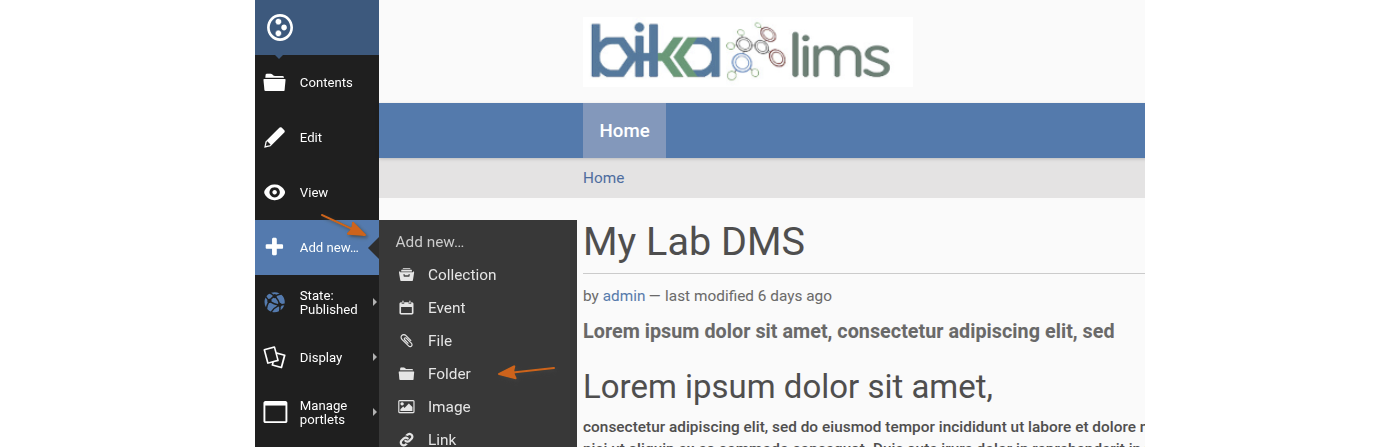
On the subsequent form, capture the page title and description
Press [Save]

The folder is created and added to the top level menu. It is rendered in rCreated as it is still in Private state

Create the Subfolders in the same fashion

Create a Page
Next we'll create a folder front Page, where we'll have a page more friendly than the default folder view at right here
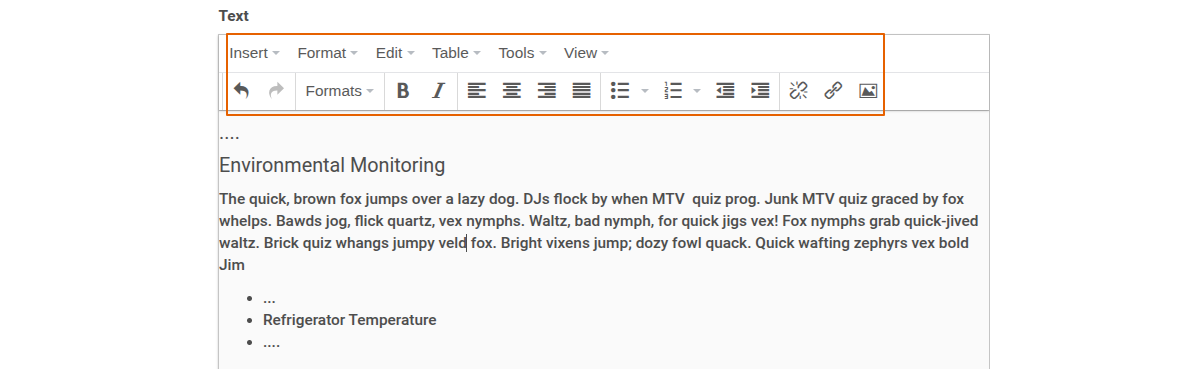
In the Facilities and Environment folder where the page must reside, click Add new... -> Page

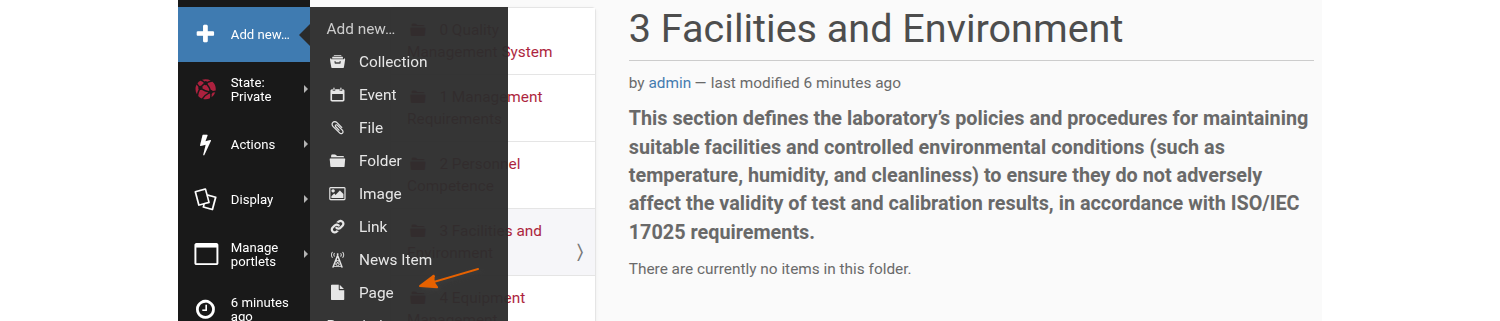
Folder Front Page
The folder will eventually contain all types of content, but we want the page we created to be the front page of the Facilities and Environment folder
Click Edit in the lefthand menu while parked on the page, the open its Settings page
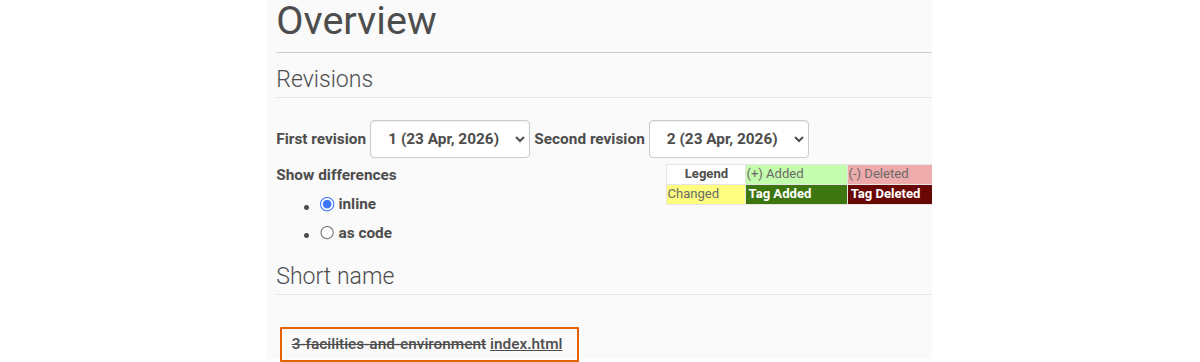
Capture index.html as its short name and [Save]. Plone will recognise this page o be the folder front page

This page will now be displayed when the user navigates to the folder

Linking to LIMS pages
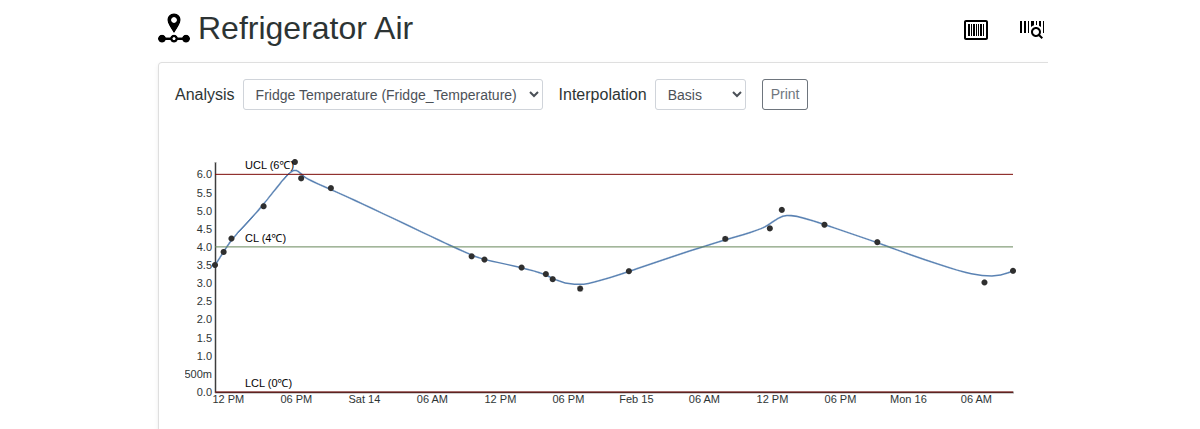
For the tutorial we will link the refrigerator temperature text to the corresponding chart in the LIMS
Highlight the text and click the link icon

Because it is an external link, we capture it on the corresponding tab

When the page is saved the link will clickable in view mode
If the URL was captured correctly, it'll lead the user to the control chart in the LIMS

Page workflow
Once the author is happy with the page, they submit it for publication
The screenshot was taken while logged in as admin, not all users get the Publish option shown here too

The page then goes into a Pending Preview state and its colour changes to yellow

The reviewer may Publish the page or Send it back. It is good to have discussion enabled on the pages for the reviewer to write up some comment on how the page canebe improved

When Published, the page is visible to non members. Normally labs keep the DMS on their intranet
Audit Trail
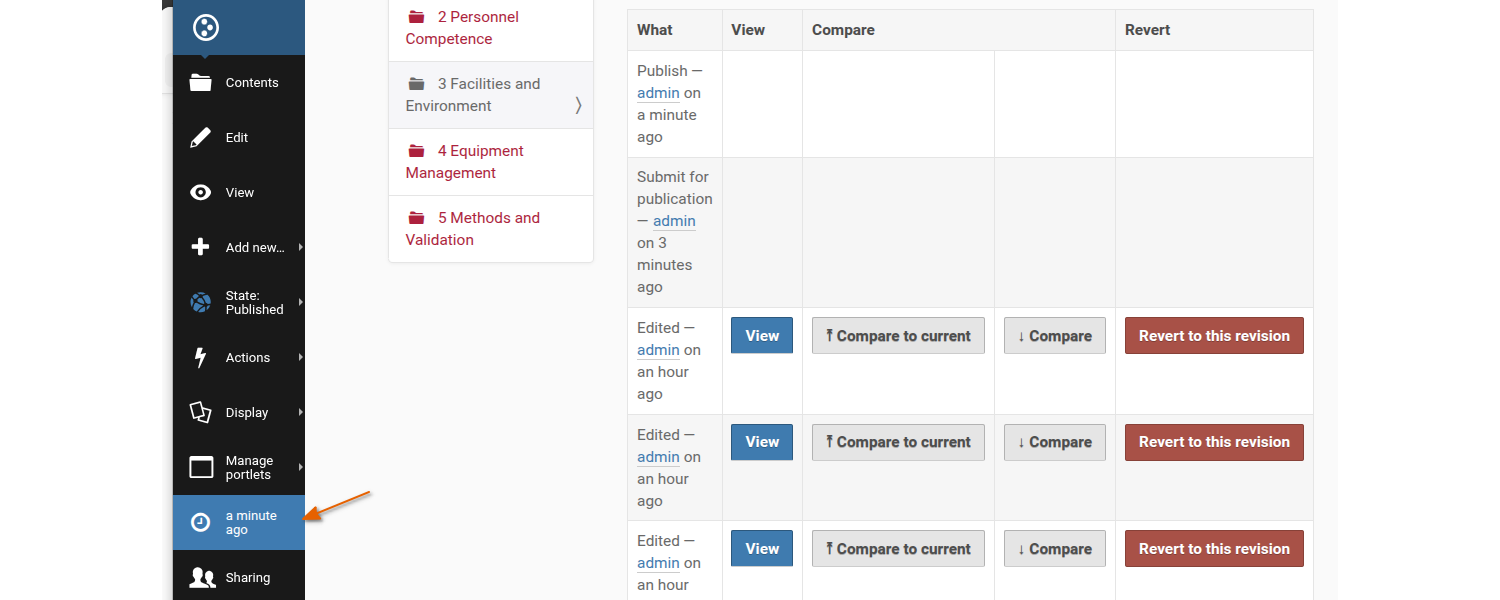
To see the page's change log click on the clock icon while parked on the page
The next page displays the page's audit trail, the user responsible and their actions are tabled in the first column