
How to get issues dealt with efficiently
Imagine a support technician being informed about a bug with a minimal, 'The Sample import stopped working' and everybody's goal is to get going asap. Without more information, the technician has only a vague idea - you should provide them with as much information possible to get them right behind the ball immediately

Create an account
Only authorised users can log issues. An account may have been created for you by support staff already. Go to the Configure the Create screen section below
To create an account, click the [Log in] icon at top right

Click [Create an account] at the bottom of the pop-up

Follow the instructions to register with your email address or any of the listed intermediaries
Configure the Create screen
Only a few parameters are required when issues are logged and the Create screen is a little cluttered. Trim it down for your use
When you are logged in click on the LIMS space

Don't worry too much about the next screen, we only want to get onto the Add Issue screen to configure it. Click [Create]

On the create form, click Configure fields from the top right drop down

Select Custom fields and the check only the fields you need, Description, Priority and Attachment

The Create issue form opens. Select the type of issue
A Bug is when the system does not perform to specification. New Features are major functional changes, Improvements for smaller items, like improving an existing form

Provide a descriptive summary for the issue. If there are more than one issu, create an issue for each. Issues are listed by this 'title' in tables and sprints
Write up the description using the doctrine mentioned above, we'll return to that shortly

Give the issue a priority, issues can be of Lowest, Low, Medium, High or Highest priority. Only open issues with Highest priority as it'll leave you no headroom to escalate issues if necessary
Since there is an upload file involved with the issue, upload it as an attachment. If the file contains confidential information, upload it to a secure online folder and share the link
Press [Create]. The tracker emails a confirmation to the reporter as well as an alert to the Bika tech team
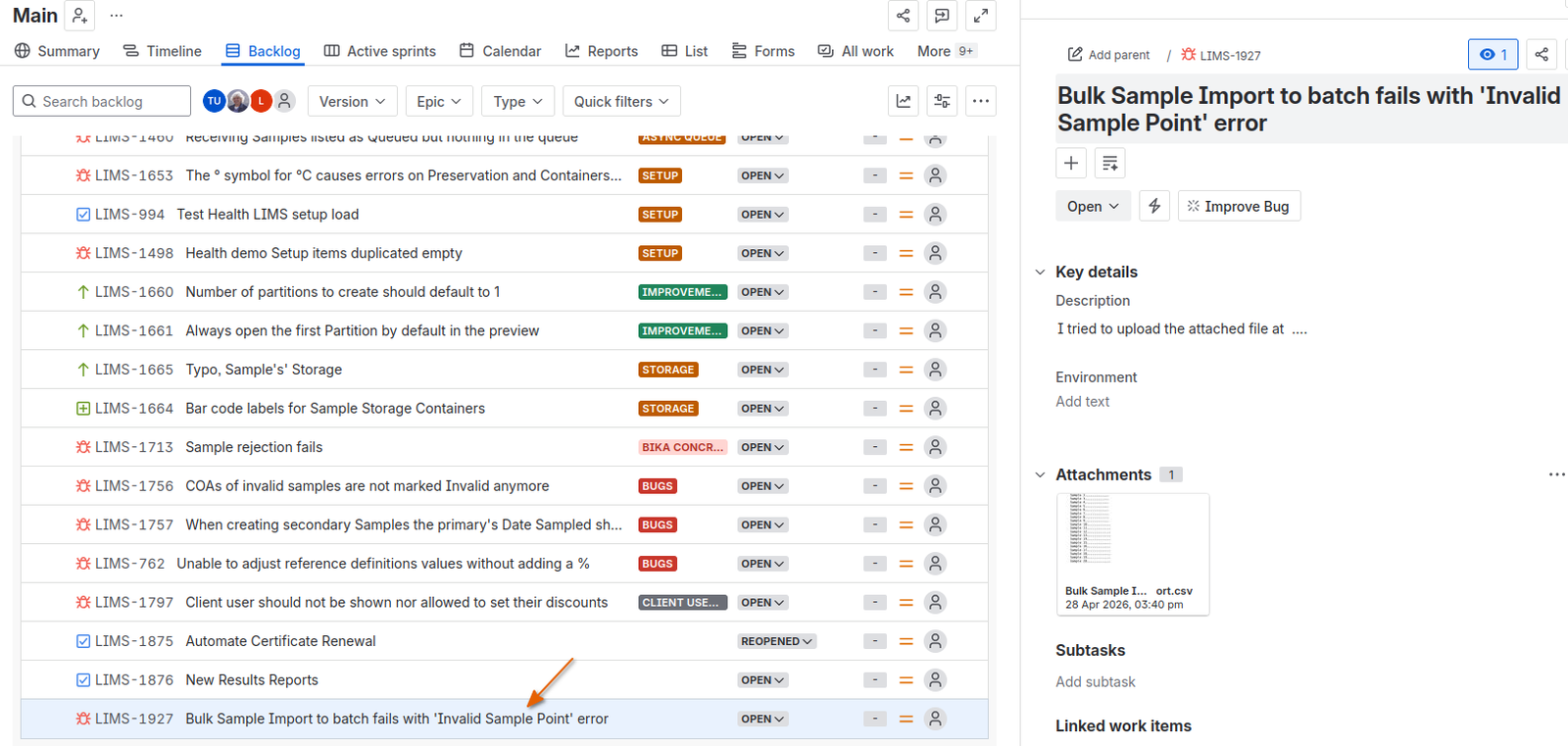
You will be returned to the LIMS backlog with your issue in the side panel and listed at the bottom from where it will be picked up

Add Watchers
If you want colleagues to be CCd in tracker emails, add them to the issue watch list. Click the eye icon always at top right of issues, click Add watchers and select subscribers from the drop down presented. Start typing in the empty field to bring up a matching list
Subscribers can also be CC'd by mentioning them in the description or comments by preceding their names with the @ symbol - handy if you need to ask somebody specifically a question

Writing up the Issue description
Here in lies the art. Start with describing what you were trying to do and already mention the page on which it happened:
I was trying to upload a spreadsheet of new Samples by navigating to Client Happy Hills' import folder, https://dev2.bikalabs.com/water/clients/client-1/@@sampleimports, and selecting my CSV after pressing the bulk import button
I landed on the Import's page - it was invalid though, with an error, Row 1: value is invalid (SamplePoint=Serving Counter).
Screen shot, page https://demo3.bikalabs.com/foodbev/clients/client-1/sampleimport-4/view:

I expected the CSV to be imported and be returned to its page with a Valid state
This gives the support tech all the information they need
Note that the screenshot can be pasted in the body of the description, Ctrl V, or right click -> Paste
Resolving the Issue
A Bika manager will assign the issue to a technician who will start working on it, logging their time they change the issue's state to In Progress
Once they are done, they Resolve the issue, normally withan explanatory message, in this case: The Sample Point ‘Serving Counter’ for sample 1 in the CSV does not exist in the LIMS. Add it there or fix the CSV to carry only valid Sample points. The LIMS sends an email to the reporter that the issue has been resolved and that they must retest
Re-opening an Issue
If the issue fails testing, the reporter re-opens it, which flags the tech by email that they must return to it

Dealing with Tracker Emails
During the process you'll regularly receive updates and sometimes questions by techs from the tracker by email
Please do not reply to the emails as that clogs up the issue's comments with unnecessary signatures, attachments, etc.
Rather click on the link provided in the email and comment online in the issue itself
Email body:

When the issue opens, find the activity stream, and capture your comment, including images where necessary, in the Comment field and [Save]
