
How to Create and Use Worksheet Templates in Bika LIMS
Worksheet Templates are one of the most powerful features in Bika LIMS. They enable you to create reusable templates that automatically apply the correct analyses, QC samples and instrument, method when generating worksheets for your samples. In this tutorial, you will learn how to create, configure, and apply Worksheet Templates to streamline your daily laboratory operations.
Creating a Worksheet Template
Navigate to WSTs in the Setup

Press [Add]

A page with three tabs, Default, Layout and Analyses open
Default tab
Give the WST a name and description, in the tutorial we use Anions
To restrict the Analyses the WST will include, on can limit it them to a specific Method and Instrument
Because resetting the number of Samples on the layout tab, causes the form to reload, it is best to [Save] the WST after completing the tab

Layout tab
Here you tell Bika how many positions to include on the Template, and where to put QC Samples
Enter the number of positions and press [Set], not [Save]

The page will reload, click the Layout tab, it displays all positions. Note the empty Reference and Duplicate columns

Prerequisites 1
Allocating the QC samples, assumes that the Reference Definitions for the ones you'll be using do exist. Manual, Reference Definitions
Here we'll be using demonstrative examples, A Blank with all values 0 mg/L, and A Control 5 with all values 5 mg/L
At runtime, for the WST to work you need to have the actual Reference Samples based on the Definitions in stock, more about that later

Worksheet Template QC Samples
Back on the Layout tab, under Analysis Type, select Blank for position 1, and Control for position 2. Next to the entries fields in the Reference column will open up, select A Blank and A Control 5 accordingly
Analysis, is short for the routine Analyses that'll make up the rest of the worksheets positions

For the Duplicate of the Sample in position 3 in the last position, select Duplicate as Analysis Type, and 3 in the Duplicate of column

Analyses tab
On the Analyses tab you must select the ones to be included in the template. Only Analyses set up with the Method and Instrument the WST demands, will be offered for selection
Press [Save]

Using Worksheet Templates
Prerequisites
- Valid Reference Samples. You need to have unexpired stock of the reference material prescribed by the Template
- Enough routine Samples with anions requested for them to fill the new Worksheet with

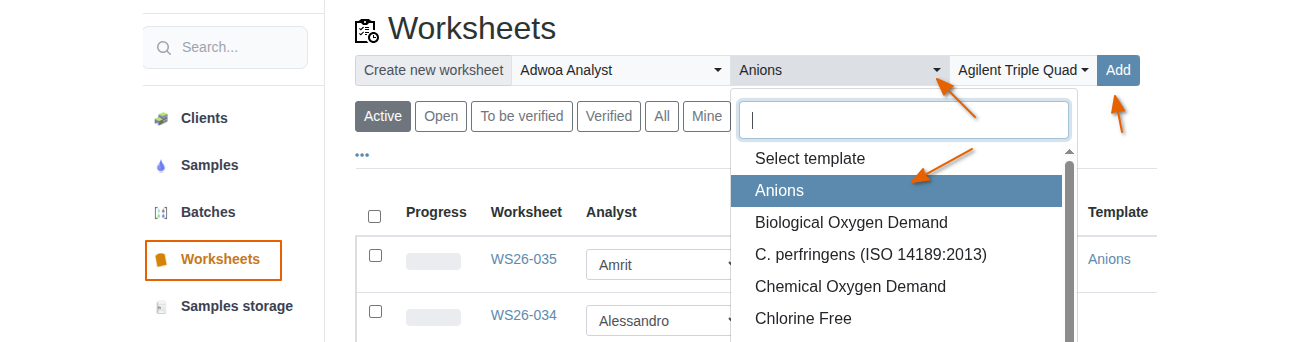
From the navigation bar:
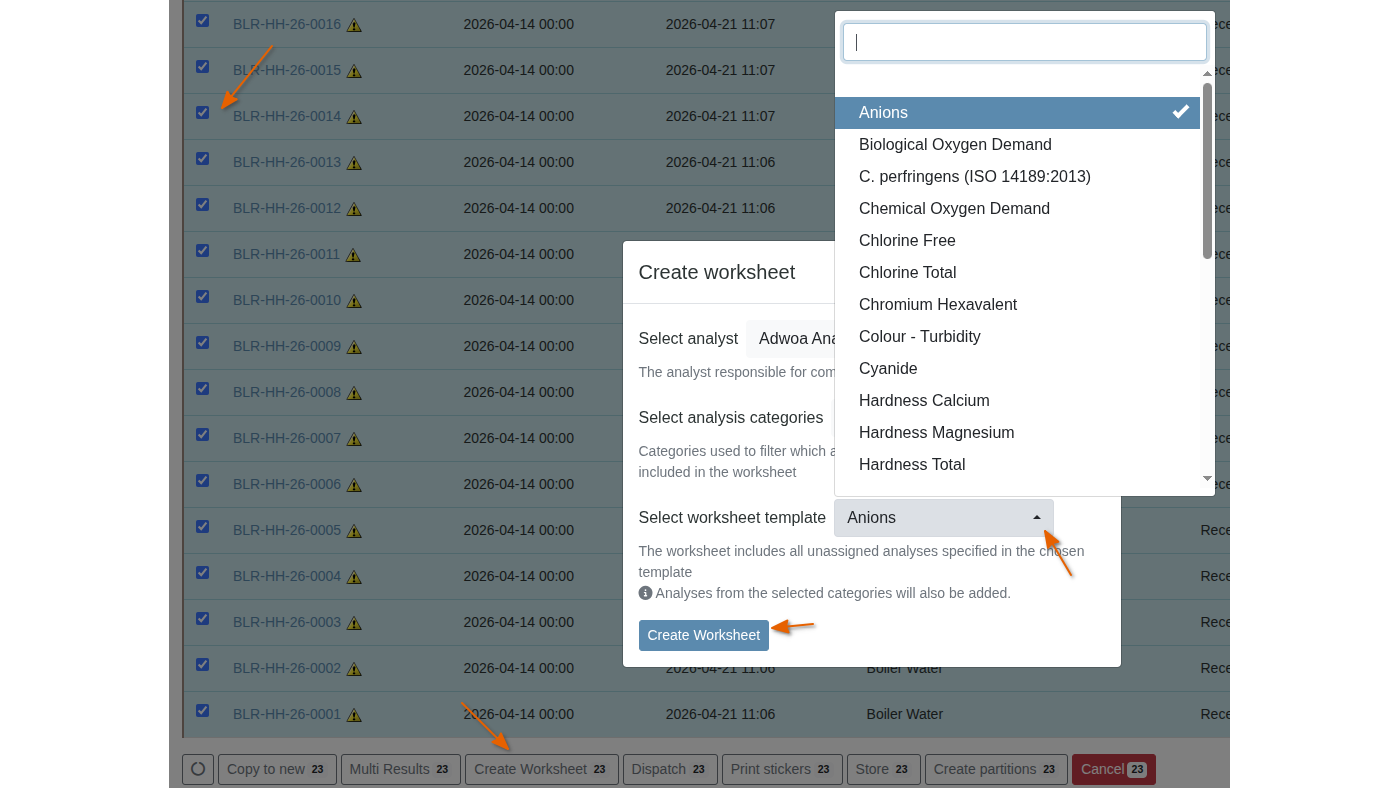
From a Sample list, e.g inside a Batch:
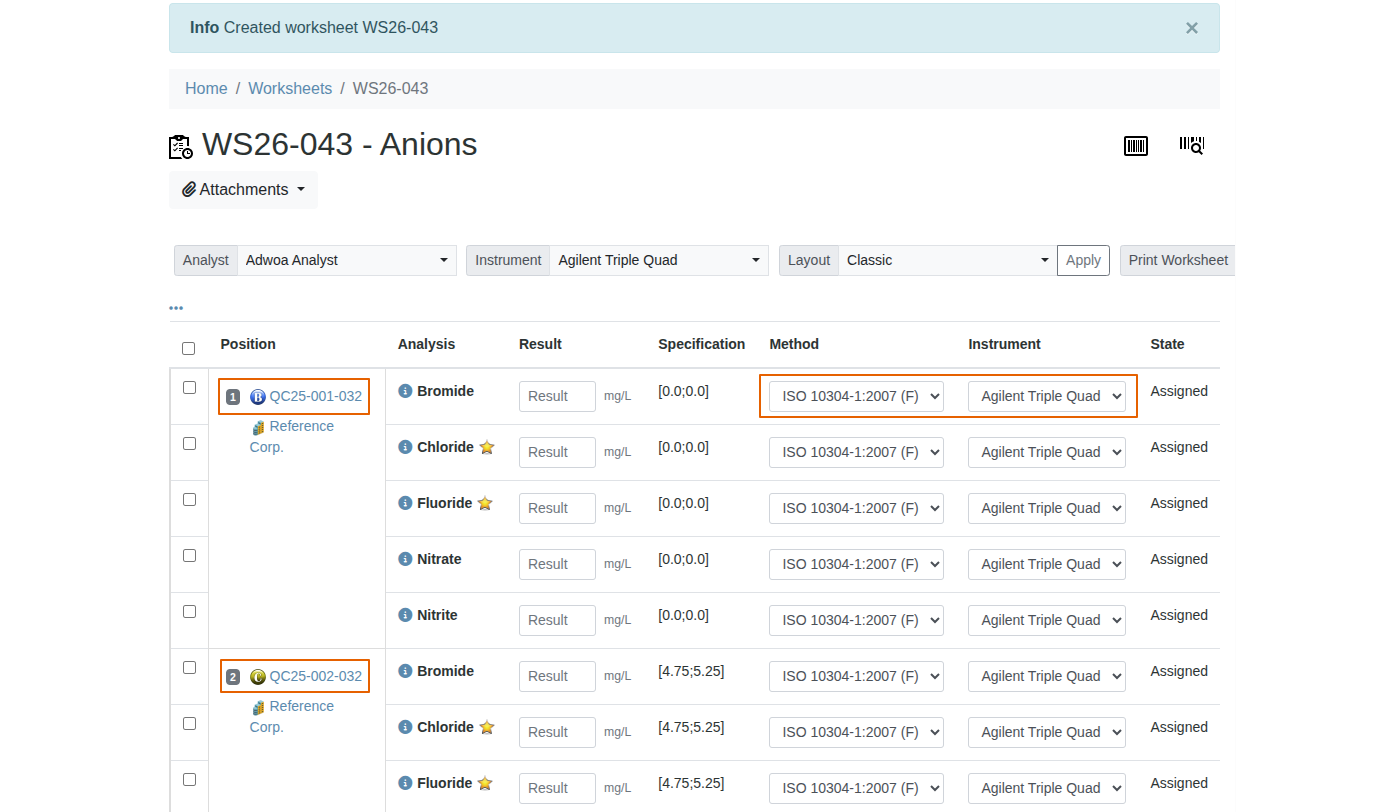
New Worksheet:
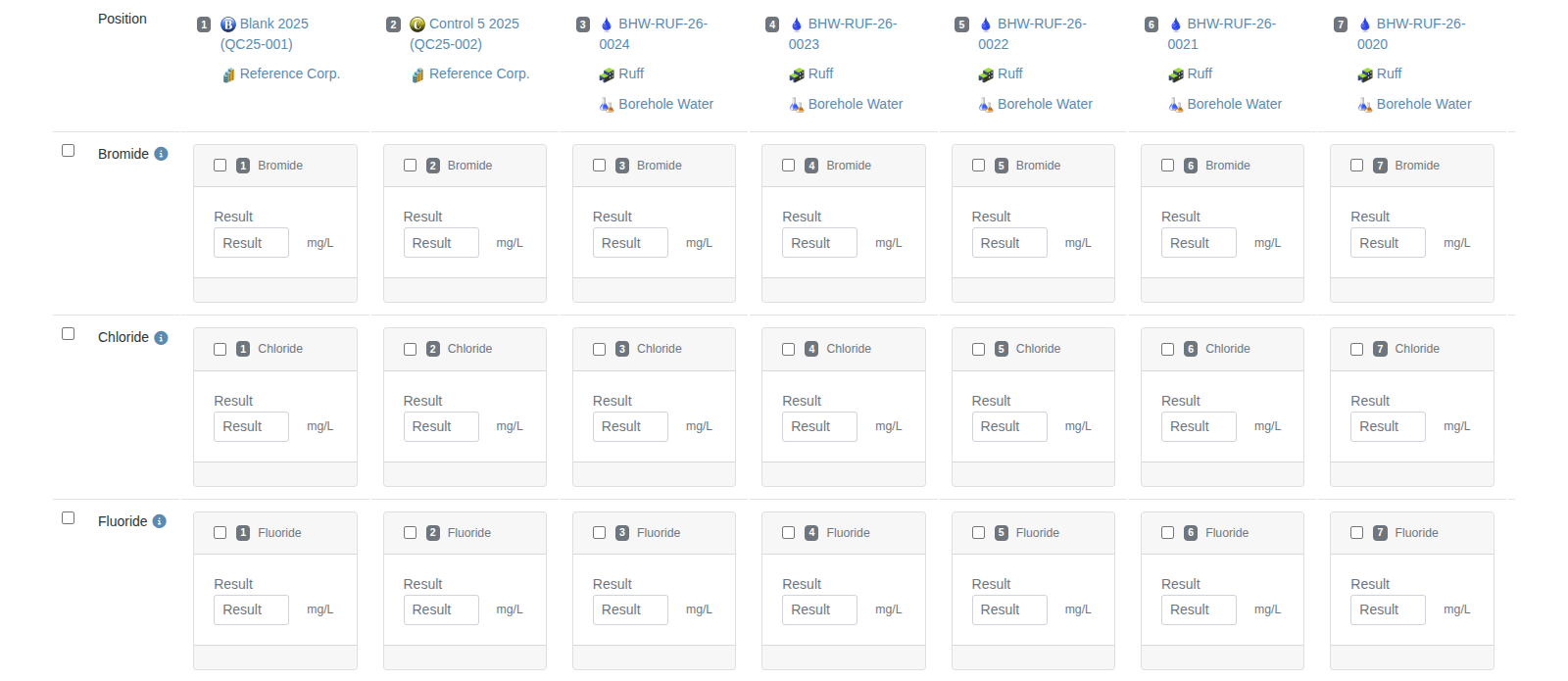
In transposed layout, it is possible to also get the routine Samples into the screenshot
In position 25, the Sample in position 3 is duplicated
