
Storing Samples
How to manage storing Samples in Bika LIMS
From Sample lists
Select the Samples to be stored on Sample lists - a [Store] button is shown for Samples not currently in Storage. Click it
The user is taken to a form where Storage Positions can be selected for the Samples. The Position address is made up from the position in an actual Sample Containers such as a box, up through parent containers - shelves, fridges, rooms - to a top level Storage Facility
Select a Sample Container and a Position in it for each Sample and press the [Store Samples] button
The Samples' Storage state changes to Stored and can be looked up on Sample list by using the Stored filter button at the top of the lists
From Sample Views
The same Store Samples form can be reached on individual Sample views an its status drop down at top right in the view
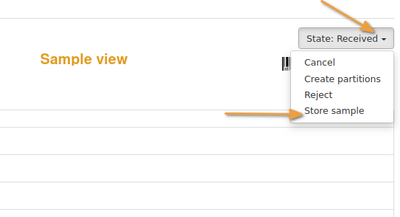
Directly in a Sample Container
Users can also navigate to a specific Sample Container in the previously configured Storage Facilities
Open the Sample Container and click the [Add Samples] button
The two dimensional Sample Container view opens. One can also navigate to it from the Container's Layout tab
Look-up the Samples to be stored and select a Position for it or, better, scan the Sample ID in. The Postion defaults to the first next available open Position
The user is returned to the Sample Container layout view. A storage confirmation message is displayed and the sample in the Position it was stored to
Repeat for all the Samples to be stored